










Visitors who reach your site from ChatGPT usually do show up in GA4. The trouble is that they end up scattered across different rows, and you can't read them alongside traffic from other AI assistants. This guide covers the GA4 side of the job: how the default channel group classifies AI traffic, how to build your own channel group with a regex, how to set up a segment in an exploration, and how to tie that traffic to key events. For the full measurement framework, including a fixed question set and Search Console, see How to measure AI visibility; this post implements the GA4 step of that framework.
Menu names and rules below come from the Google Analytics Help Center, and the labels in your interface may differ slightly. Google notes that these definitions may change over time, so check the current version of each help page before you start. If you're new to GA4, What is GA4? covers the basics.
How GA4 classifies AI traffic
The "Default channel group" page in Google Analytics Help defines a separate AI Assistant channel: the channel by which users arrive at your site from sources like ChatGPT, Gemini, Deepseek, Copilot or Grok. The rule has two parts:
- Traffic whose medium exactly matches
ai-assistantgoes into the channel. - If the referrer matches Google's list of AI assistants, GA4 sets the medium to
ai-assistantand the campaign to(ai-assistant).
The page doesn't spell out which domains are on that list next to the rule; the brand names in the description are examples ("sources like"). So treat the default channel as Google's view of AI traffic, not a list you can audit.
According to the same page, Google's AI Overviews and AI Mode are excluded from this channel; clicks from those features count as Organic Search. In other words, "AI traffic" in GA4 means two different things: visits from assistants such as ChatGPT or Perplexity, and visits from the AI features inside Google Search. GA4 doesn't separate the second kind from organic search. We explain how AI Mode works in What is Google AI Mode?
Start with the data you already have
Before building anything, find out how ChatGPT traffic looks in your property today. The quickest route is the Traffic acquisition report:
- Open Reports > Acquisition > Traffic acquisition. Google lists "Session default channel grouping" as the report's default dimension. If you see an AI Assistant row there, the default rule is already picking up some of the traffic.
- Switch the primary dimension to Session source / medium, which Google defines as "the source and medium associated with a new session."
- Type
chatgptinto the table's search box, thenperplexity,gemini,copilotandclaude. Note which source and medium values appear for each.
This quick check tells you what your regex needs to catch. The same assistant can show up with more than one medium value, which is why it's safer to build the channel rule on source rather than medium.
Why one assistant shows up in several rows
With Session source / medium as the primary dimension, look for values such as chatgpt.com and perplexity.ai. Under Google's default channel definitions, a referrer that matches Google's list of AI assistants gets the medium ai-assistant, while one that isn't on the list may stay referral. If you tagged a link yourself, Google's traffic-source page notes that missing UTM parameters show up as (not set). A rule built on the source dimension catches the same text whatever the medium says.
Setting up a custom channel group
The default AI Assistant channel is a quick start, but you can't see which domains it covers on the help page, and you can't edit it (Google says channel definitions can't be edited). A custom channel group gives you control. The ground rules from Google's "Custom channel groups" page:
| Topic | Google's rule |
|---|---|
| Where | Admin > Data display > Channel groups |
| Access | Editor role or above at the property level |
| Limits | 2 custom groups per standard property and 5 per Analytics 360 property, in addition to the default group; up to 50 channels per group |
| Order | Traffic goes into the first channel whose definition it matches, in the group's current order |
| Historical data | Custom channel groups can be applied to your reports retroactively |
| Case | Channel definitions aren't case sensitive |
Steps:
- Under Admin > Data display > Channel groups, click Create new channel group. The new group starts as a copy of the default group, so the existing channels stay in place.
- Give the group a clear name, such as "Channels + AI".
- Add a new channel and name it "AI assistants".
- For the condition, choose the Source dimension, set the operator to matches regex, and enter the expression below.
- Use Reorder to move the new channel above Referral, click Apply, then Save group.
Google's example asks you to place the AI channel above Referral, and notes you can also place it above other channels such as Organic Search. Because traffic lands in the first channel it matches, if your copied group also contains the default AI Assistant channel, move your channel above that one too; otherwise assistants Google already recognizes will stay there. After saving, check both rows side by side in Traffic acquisition.
Regex: Google's example and a tighter alternative
Google's help page includes a ready-made "AI assistants" example. It names ChatGPT, Gemini, Microsoft Copilot, Claude and Perplexity as popular assistants and gives this expression:
^.*ai|.*\.openai.*|.*chatgpt.*|.*gemini.*|.*gpt.*|.*copilot.*|.*perplexity.*|.*google.*bard.*|.*bard.*google.*|.*bard.*|.*.*gemini.*google.*$
It's broad. The .*gpt.* part catches any source with "gpt" in its name, and ^.*ai can pull in .ai domains that aren't AI assistants at all. The result can be referrals from unrelated sites showing up in your AI channel. A narrower, more readable starting point:
.*(chatgpt|openai|perplexity|gemini\.google|copilot|claude\.ai).*
| Part | What it catches |
|---|---|
chatgpt, openai | Source values containing ChatGPT and OpenAI domains |
perplexity | Perplexity source values |
gemini\.google | gemini.google.com; plain "gemini" would also catch unrelated sites with gemini in the name |
copilot | Microsoft Copilot source values |
claude\.ai | Claude source values |
The leading and trailing .* let the expression match anywhere in the source value. In regex a dot means "any character," so escape it with a backslash when you mean the literal dot in a domain. Treat this as a starting list: as of November 2026 we couldn't find live official documentation describing how these assistants pass referral information, so widen or narrow the list based on what you found in the report check above. Google also recommends updating the regex when the assistants or URLs you want to measure change.
If you want ChatGPT on its own row, build two channels: "ChatGPT" on top with just .*(chatgpt|openai).*, and "Other AI assistants" below it for the rest. Because of the first-match rule, ChatGPT traffic won't be counted again in the second channel.
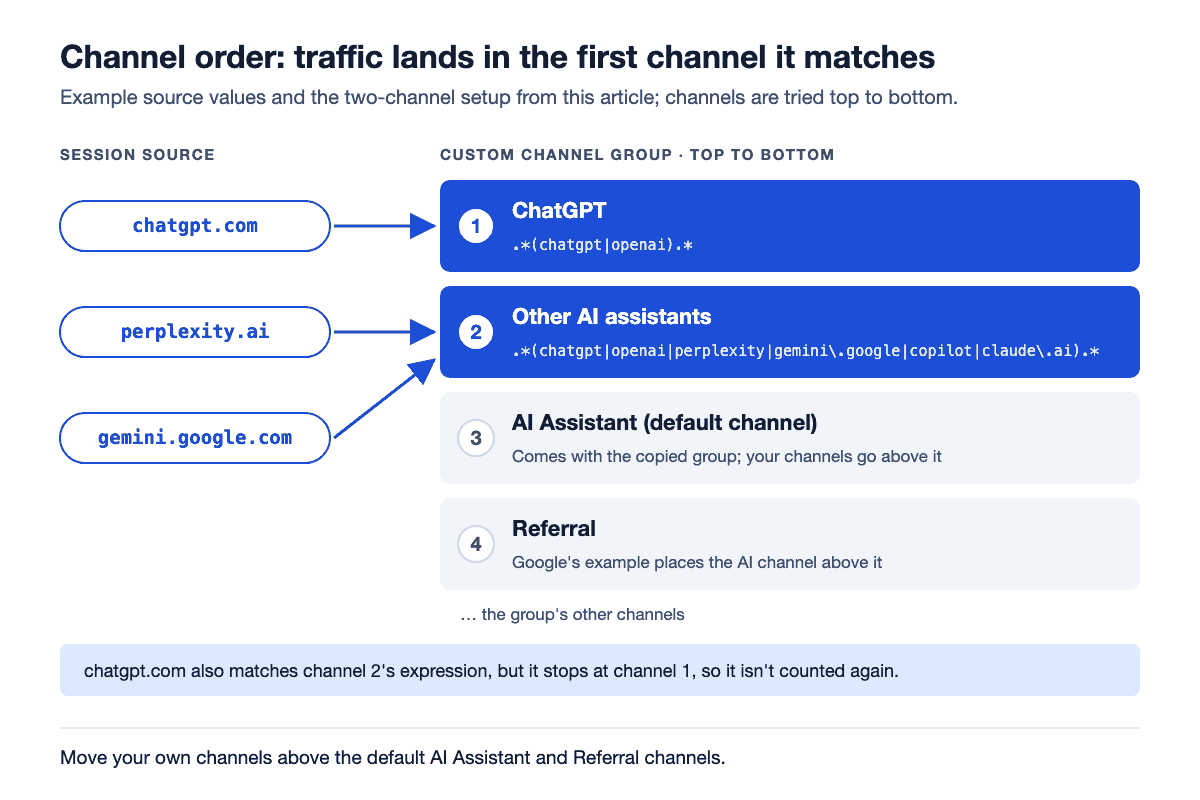
Channels in a custom group are tried top to bottom: chatgpt.com stays in the ChatGPT channel it matches first, while perplexity.ai and gemini.google.com go to the second channel.
Using the group in reports
According to Google, you can use a custom channel group as the primary or secondary dimension in the User acquisition and Traffic acquisition reports, as a secondary dimension in default reports such as Events, and as a dimension in custom reports, explorations and audience conditions. You can also make your new group the property's primary channel group; Google says data then populates using the new criteria from that point forward.
The same page lists the limits: custom channel groups can't be used in the Key events paths report, they aren't part of the BigQuery Export schema, and editing a group immediately affects segments, explorations and reports, which can make them inconsistent with other reports. Changes to audiences apply going forward only, not retroactively.
Going deeper with explorations and segments
The channel group answers "how much." For "which pages do they land on, and what do they do," use an exploration. Google's "Get started with Explorations" page says you reach them through Explore in the left navigation.
- In Explore, start a new Free-form exploration.
- Click the plus sign next to Segments and choose a session segment.
- Use Add new condition to pick your channel group's session dimension and set the value to "AI assistants". Name the segment "AI sessions". Google says custom channel groups are available as dimensions in explorations, and tying the segment to the group means you only maintain the regex in one place. If your channel group isn't in the condition list, use the Session source dimension with a condition that covers the same sources.
- Click Apply to use the segment in this exploration only, or Save to property to reuse it elsewhere.
- Put landing page in Rows and sessions plus key-event metrics in Values; add an all-users segment for comparison.
According to Google's "Segment builder" page, you can create up to 10 segments per exploration and apply up to four at once to a single technique. If an exploration query covers more than 10 million events, results may be based on sampled data; a shorter date range reduces the number of events in the query.
The most useful question in this table: which landing pages do AI-assistant visitors arrive on? That list is an indirect clue to the topics where assistants cite you. Which questions you're mentioned in is something GA4 can't tell you; the question set in the measurement framework does that.
Connecting AI traffic to key events
Traffic alone doesn't support a decision; what matters is whether these visits contribute to business results. In GA4 that runs through key events, which Google defines as events that measure an action that's particularly important to the success of your business. Typical examples are a form submission, a demo request or a purchase.
- Make sure the event that measures the action is a key event. If you're creating a new event, go to Admin > Data display > Events, click Create event and turn on Mark as key event.
- In the Traffic acquisition report, set your channel group as the primary dimension. According to Google, Key events counts the times users triggered a key event, and Session key event rate is the percentage of sessions in which a user triggered one.
- Compare the AI channel's rate with Organic Search and Referral over the same date range.
Two cautions when you read the numbers. If the channel has few sessions and key events, a rate built on a handful of conversions can flip next month; report raw counts next to the rate. And when time passes between first touch and conversion (B2B sales, health tourism), a session-level report won't show a journey that started with an assistant and finished through another channel. Saving the AI segment as an audience to follow those users' later sessions, or matching sales data to source in your CRM, gives a more accurate picture.
Limits: AI traffic GA4 can't see
However clean the setup, GA4 can only put visits into the AI channel when it can recognize where they came from. For traffic it can't attribute, GA4 has nothing to say:
- Visits without a referrer. According to the W3C Referrer Policy spec, a page that uses the
no-referrerpolicy sends no referrer header at all. If the link carries no UTM either, GA4 can't tie that visit to an AI assistant. - Links opened from apps. As of November 2026, we couldn't find live official documentation on how links clicked in AI assistants' desktop and mobile apps pass referrer information. Don't assume which channel app traffic lands in; check your own data.
- Copied or retyped addresses. If someone copies the address an assistant gives them into the browser, or remembers your brand and types your URL later, the visit can't be linked to AI. Google defines Direct as visits that arrive via a saved link or by entering your URL. Some AI-driven visits that lose their trail sit in that row, but GA4 can't tell you which ones. Don't apply a ratio that claims to estimate this hidden share.
- Google's AI features. Clicks from AI Overviews and AI Mode are in Organic Search. For impressions in those features, use the Generative AI performance report in Search Console. According to Search Console Help, it has been available for all websites since August 31, 2026; its metric is impressions, broken down by page, country, device and date, with no query dimension.
- Visibility without a click. If an assistant mentions your brand without a link, or the user doesn't click, GA4 sees nothing. The question set measures that part; the method is in the measurement framework post.
None of this makes GA4 data worthless; it just has to be read correctly. The AI channel in GA4 isn't all of your AI-assistant traffic, only the part whose source can be recognized. Month-over-month trends and the pages people land on can be read from that part; if it jumps or drops suddenly, check whether the source values changed first.
Post-setup checklist
- Set your channel group as the primary dimension in Traffic acquisition. Is the AI channel above Referral?
- Repeat the
chatgpt,perplexity,gemini,copilotandclaudesearches with Session source / medium as the primary dimension. Is anything missing, or caught by mistake? - Once a month, look for new assistants or new source values and update the regex.
- Add the AI segment's key events to your monthly report as a separate line.
- Put Search Console's Generative AI performance report in the same monthly table: GA4 tells you about clicks, Search Console about impressions.
If you need a ready-made dashboard to share the report, we compare the options in our list of GA4 reporting tools. To set up the channel group, key events and monthly report together, see our GA4 consulting page; for work that reads this data alongside your visibility in AI answers, see AI visibility consulting.
Frequently asked questions
Do clicks from Google AI Mode show up in GA4's AI Assistant channel?
No. In Google's default channel group, AI Overviews and AI Mode are excluded from the AI Assistant channel and counted in Organic Search. To see your visibility in those features on its own, use the Generative AI performance report in Search Console, which reports impressions rather than clicks or queries.
Does a custom channel group change historical data?
In reports, yes: Google says custom channel groups can be applied to reports retroactively, so you can read past months under the new rule on the day you set it up. There are exceptions. Changes to audiences only apply going forward, and if you make the group your primary channel group, data populates under the new criteria from that point on.
Should I tag my own links with an AI assistant's name as the UTM source?
No. You don't create the links ChatGPT shows in its answers; UTMs only help on links you distribute yourself, such as newsletters, ads and social posts. Putting an assistant's name on your own links makes that traffic look like it came from AI and skews the channel report. When you tag your own campaigns, follow Google's advice: if you set one UTM parameter, set all the relevant ones.
How many custom channel groups can I create?
According to Google, a standard GA4 property allows 2 custom channel groups in addition to the default group, and an Analytics 360 property allows 5, with up to 50 channels per group. With so few slots, it usually makes sense to add your AI channels to one group that copies your existing channels rather than spend a slot on AI alone.
Will my channel group appear in my BigQuery export?
No. According to Google's help page, custom channel groups aren't part of the BigQuery Export schema. If you need the same split in BigQuery, you have to rebuild the channel definition in your queries, then check the result against the GA4 report for the same date range.
Sources
- 1Google Analytics Help, Custom channel groups, 2026
- 2Google Analytics Help, Default channel group, 2026
- 3Google Analytics Help, [GA4] Traffic acquisition report, 2026
- 4Google Analytics Help, Traffic-source dimensions, manual tagging, and auto-tagging, 2026
- 5Google Analytics Help, Get started with Explorations, 2026
- 6Google Analytics Help, Segment builder, 2026
- 7Google Analytics Help, Conversions vs. key events in Google Analytics, 2026
- 8Google Analytics Help, Create or modify key events, 2026
- 9Search Console Help, Generative AI performance report (Search), 2026
- 10W3C, Referrer Policy, 2017

Zehra AdaşManaging Partner
Zehra Adaş is Roicool's co-founder and a Managing Partner, and leads strategic marketing, specializing in brand positioning, digital communication and creative strategy.